

So this is my first tutorial for a long while. And it's not so much a tutorial but more of a guide - I won't be giving specific instructions, but just general advice. I've been asked a number of times about Colour Balancing, so I thought I'd share the love. This tutorial will be about Colour Balancing, NOT Colour Grading, which are totally different things.
Is fixing colour and tone issues created by shooting. It is trying to get the cleanest image possible, taking care to erase cast and exposure issues. You would also be fixing skin tones, and preparing the image for a colour grade later on. You are essentially trying to recreate how the eye perceives a scene.
Unlike Colour Balancing, Colour Grading is creating a colour 'Look' for a piece. We've all seen these...A good example is the really 'Orange and Teal' look of the 'Transformers' films. Or the Neo Noir of 'The Matrix' series. The purpose of these casts is to help to tell the story, and to elicit an emotional response from the viewer.
Before we start we have to go over some theory that you have to understand to be able to Colour Balance properly.
In the digital video world, colour is shot in RGB and measured in numerical values, from 0 to 255 in each colour channel. RGB stands for Red Blue and Green, which are the names given to each colour channel.The darkest areas of a scene are referred to as blacks, which have a value of 0. Pure whites have a value of 255. The midtones (also known as the greys, mids, and medium tones) have a value of around 127.
You will need, After Effects with a copy of Color Finesse
Open up the footage you want to edit in After Effects. Create a new comp with it, select your footage then go to Effect > Synthetic Apeture > Color Finesse. You'll see the settings appear in your effects window. If you can't see your effects window it's probably hiding behind your project window. For this tutorial, I'll be working in Color Finesse (CF) 2. Go right ahead and click on 'full interface' and let it load.

Well doesn't that look waay too complicated?
No fear. Well you may have noticed that Colour Finesse is broken up into three main areas. Luckily it's layout is inspired by AE, so you can expect to find setting where we would find them in AE. Lets talk about the tools for a bit.
You can view these values on a histogram, which is a very basic visual representation. The histogram flows from left to right, with the blacks at 0 on the left, and the whites at 255 on the far right. Midtones are the middle arrow, which can be moved around as required. The height of the histogram is determined by the frequency of that value in the image. EG, the more black there is in a scene, the higher the 'blac' bar will grow. If we have a lot of white in the scene, the white values will shift higher.
Every aspect of your video is laid out in a visual graph on Video Scopes. Each Scope represents a different aspect of your image. For example hue, saturation, luminosity ect. We will only touch over briefly the we will be using for this tutorial, but you can read more about them in detail here. The info is for Final cut Pro, but the Video Scopes work the same in all software. We'll go through them one by one from left top to right bottom.
The Waveform Monitor shows the chroma and saturation of a clip. It images is projects directly correlates with the image on the clip being displayed. Any dip in colour is displayed as a dip on the graph.
The Vectorscope shows the colour in a clip in a circular wheel which mimics a colour wheel. It is divided up into different colour ranges. Tones without colour are positioned in the center of the wheel. These are blacks, greys and whites. Heavily saturated colours are found on the wheel's edge. Each colour area has a box on it. These box guides are 'broadcast safe' guides. Any colours in these boxes or beyond will not be viewable on a broadcast monitor. The Vectorscope ahs a neat trick up it's sleeve too. See that line between R and Yl? That's the skin-tone line. All skin colours, no matter race or creed, will fall onto this line if the scene is colour corrected properly. Part of the primary colour correcting process is ensuring that skin tones are portrayed accurately. We'll use it in an example soon.
This displays our histograms in an easy to read format. This example shows only the master line, but as we edit each colour channel individually, a corresponding line will appear on the chart.

So let's take a look at the shot we'll be colour balancing using for this example.

Terrible. I mean, it's a nice shot and all, but it has some severe problems with color casting, crushed blacks, dark skin tones and low white values. Which is why I chose it for this tut. Luckily, the footage does not look ruined, and so is easily saved in the edit. Now let's take a look at it's vectorscopes...

Well as you can see from this screen grab alone, the shot is completely out of balance. Just looking at our example image above we see that it has a very prominent orange cast on it. We can see this in our histograms without even looking at the actual shot. We can see that our blue is very low down, and red fills up most of the colour range. We can see from the luma value too that the shot is underexposed. We know this because the max value is only at 193, when it should be at around 150. So how to fix this then?
Lets open the RGB section on the bottom panel. It will give us the controls to manipulate our RGB Histograms seen above. What we are going to do is manipulate the numbers to give us a good exposure, with no colour cast. How do we do that?
Lets fix our red channel first. Each histogram has a set of controls underneath that will manipulate it. So for the red channel we can tweak it using 'gamma' 'pedestal' and 'gain'. Moving the pedestal figure around will move the whole histogram. Use this to give us a 'Min' number of 10. Then we change the gain, to give us a 'Max' number of 145. Then we use the gamma control to give us a value of around 105. I'll discuss these values in more detail in the next section. Repeat these steps for the green channel, and lastly the blue channel. You'll find the Luma channel will correct itself. Magic!
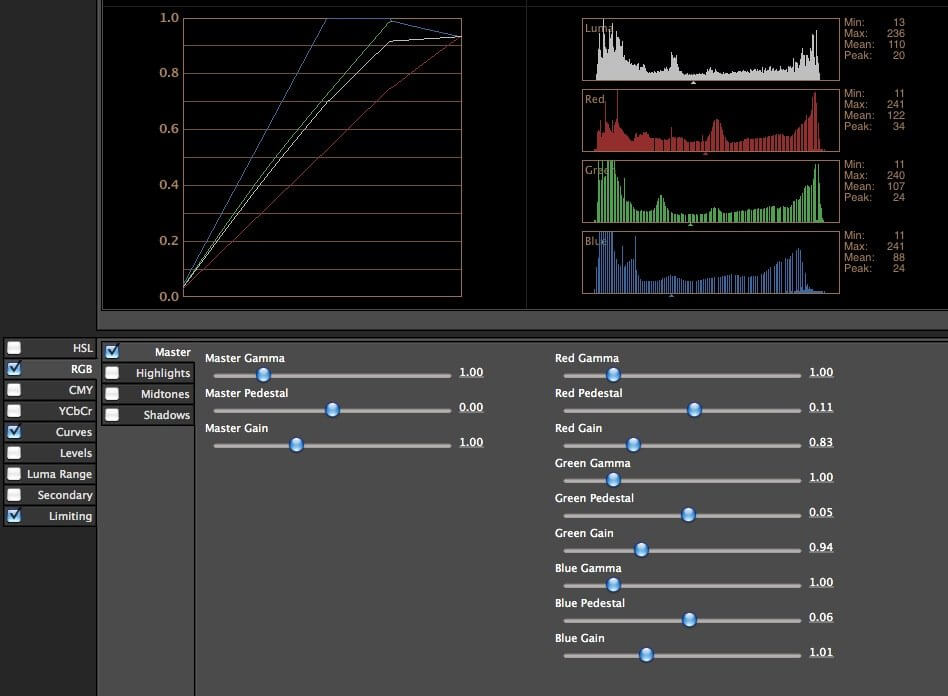
So this is what your histograms should now look like. Obviously your exact figures that you dial into the sliders will be different, but your Histogram figures should be more or less the same. So what now? Well now you have to fix your skin tones. Lets open up that curves editor we talked about. Remember that we have to try and co-erce our colours to fall across the skin tone line. Obviously not all our colour should lie on this line. In fact we don't want too much to straddle the line. All we are doing is nudging the colour into the right area so that the actors look healthy. So we do this by grabbing around the middle of a curve - NOT the Luma. Lets grab the middle of our Red Curve, and slide it very gently upwards to give our skin tones a boost, keeping an eye on the vector-scope and histograms the whole time. Do the same with the Green and Blue Channels. And that is almost it. Now any corrections we do to our image has to be by eye. But you should find that your image is a very good exposure and Colour balanced, and ready to sex up with a nice Colour Grade. Lets look at our before and after shots.
Before the colour balancing

So why did we put in those odd values on the histograms instead of the Min and Max values possible?
Remember I said that the lowest value was 0 and the highest was 155? Well why did we go for a 10 Min and a 145 Max? Quite simply we don't want our blacks to be crushed and our whites to be peaking. Not everyone's computers are as high spec as your awesome Mac Awesome computer, so they can't display full colour ranges properly. The odd values act as a buffer for these bad monitors. It also gives us a nice flat tonal range which means we have more control over our colour grade when we apply it.


