
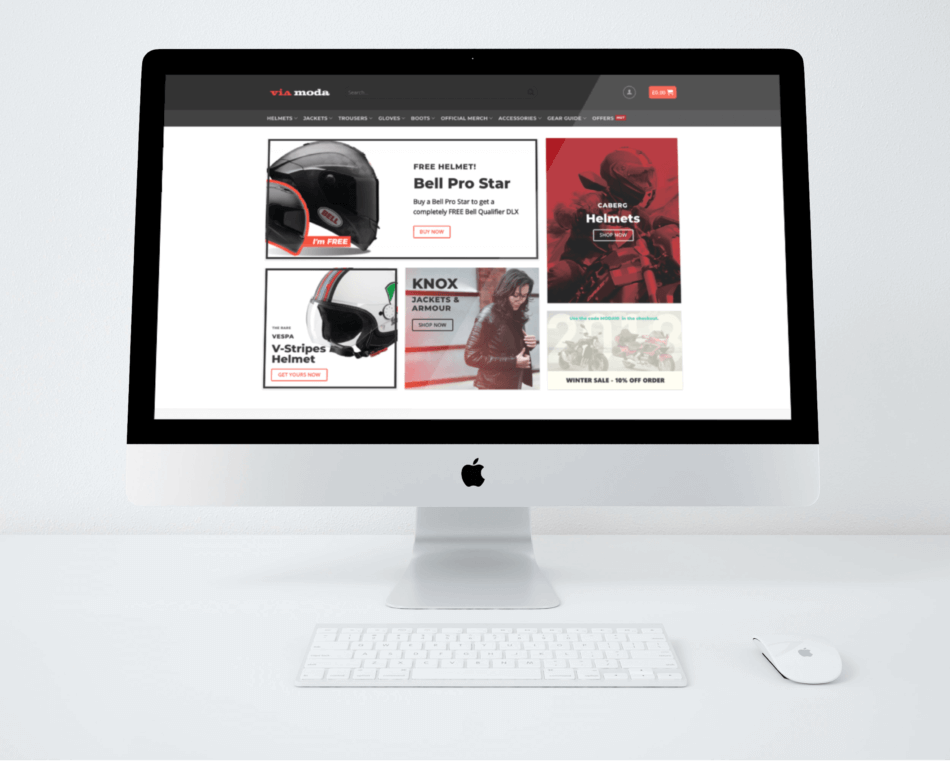
In the realm of web design, creating responsive and visually appealing layouts is paramount. Two powerful tools that have emerged to facilitate this task are Flexbox and CSS Grid. Both of these layout models are part of the CSS specification and offer unique capabilities that cater to different design needs.
Flexbox, short for the Flexible Box Layout, was introduced to provide a more efficient way to lay out, align, and distribute space among items in a container, even when their size is unknown or dynamic. It excels in one-dimensional layouts, making it ideal for aligning items in a row or a column. On the other hand, CSS Grid Layout is a two-dimensional layout system that allows designers to create complex grid-based layouts with ease.
It enables the arrangement of elements in both rows and columns, providing a more robust framework for building intricate designs. With CSS Grid, developers can define grid structures, control the placement of items within those structures, and create responsive designs that adapt seamlessly to various screen sizes. Understanding the strengths and weaknesses of both Flexbox and CSS Grid is essential for web developers aiming to create modern, responsive websites.
Flexbox is primarily designed for one-dimensional layouts, making it perfect for managing items in a single row or column at a time. This makes it particularly useful for aligning items along a single axis, whether horizontally or vertically. For instance, if you have a navigation bar with several links, Flexbox can easily distribute those links evenly across the available space or align them to one side.
In contrast, CSS Grid operates on a two-dimensional plane, allowing for the simultaneous control of both rows and columns. This capability makes it ideal for creating complex layouts that require precise placement of elements across multiple dimensions. For example, if you are designing a magazine-style layout with images, text blocks, and sidebars, CSS Grid can help you define specific areas for each element and control their size and position within the grid.
The ability to create overlapping elements and define grid areas adds an additional layer of flexibility that is not achievable with Flexbox alone. While Flexbox is perfect for simple, one-dimensional layouts, CSS Grid is better suited for complex, multi-dimensional layouts that require precise control over element placement and sizing.
Flexbox shines in scenarios where you need to align items along a single axis or distribute space among them efficiently. It is particularly effective for simpler layouts where the relationship between items is linear. For instance, if you are building a card component that contains an image, title, and description stacked vertically, Flexbox can easily manage the alignment and spacing of these elements.
By using properties like `justify-content` and `align-items`, you can control how these items are positioned within their container. Another common use case for Flexbox is in navigation menus. When designing a horizontal navigation bar, Flexbox allows you to distribute menu items evenly across the width of the container or align them to one side.
Additionally, Flexbox can handle responsive adjustments gracefully; as the viewport size changes, menu items can wrap onto new lines or adjust their spacing without requiring complex media queries. This adaptability makes Flexbox an excellent choice for responsive design where fluidity is key.
CSS Grid is best utilized when your design requires a more complex structure that involves both rows and columns. It excels in scenarios where you need to create intricate layouts with multiple overlapping elements or when you want to define specific areas for different content types. For example, if you are designing a dashboard with various widgets such as charts, tables, and notifications, CSS Grid allows you to create a clear layout where each widget occupies its designated space within the grid.
Moreover, CSS Grid is particularly advantageous when dealing with asymmetrical layouts or when you want to create a visual hierarchy among elements. By defining grid areas and using properties like `grid-template-areas`, you can easily control how different sections of your layout relate to one another. This capability is especially useful in web applications where user experience is paramount; a well-structured grid can guide users' attention to important information while maintaining an aesthetically pleasing design.
While both Flexbox and CSS Grid are powerful on their own, combining them can yield even more sophisticated layouts. By leveraging the strengths of each model, developers can create intricate designs that are both flexible and responsive. For instance, you might use CSS Grid to establish the overall structure of a webpage—defining areas for headers, footers, sidebars, and main content—while employing Flexbox within those areas to manage the alignment of individual components.
A practical example of this combination could be a product listing page where CSS Grid is used to create a grid of product cards. Each card could then utilize Flexbox to align its internal elements—such as images, titles, prices, and buttons—ensuring that they are spaced evenly and aligned correctly within each card. This hybrid approach not only enhances layout capabilities but also simplifies maintenance by allowing developers to choose the most appropriate tool for each specific task.
When working with Flexbox and CSS Grid, adhering to best practices can significantly improve your workflow and the quality of your designs. One key practice is to always consider the context in which you are using these layout models. For instance, while Flexbox is great for simple linear arrangements, it’s essential to avoid overcomplicating layouts that could be easily achieved with CSS Grid.
Conversely, using CSS Grid for straightforward tasks may introduce unnecessary complexity. Another best practice involves utilizing semantic HTML alongside your CSS layouts. Ensuring that your markup reflects the structure of your content not only improves accessibility but also enhances maintainability.
For example, using `


